
Maintaining Supplier's Item Code In the Item master
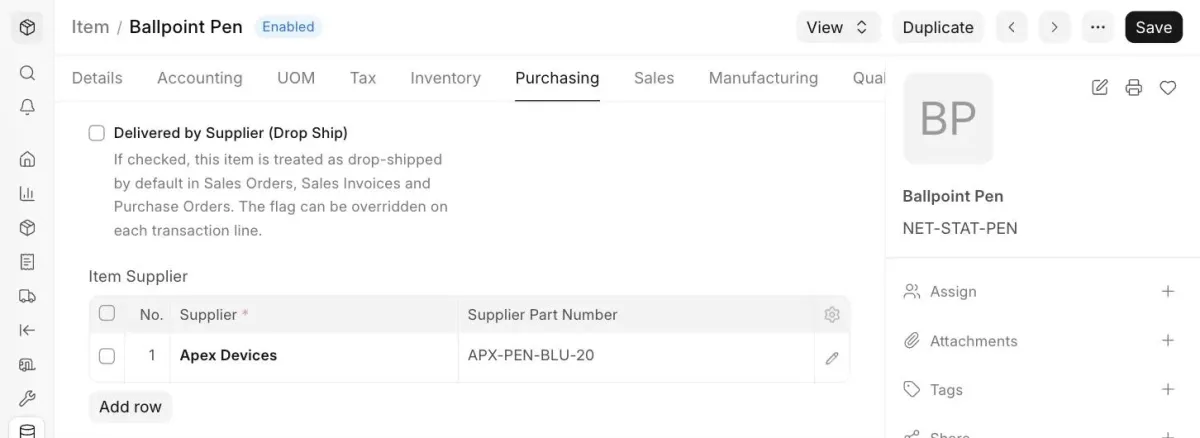
The item code you assign to an item may differ from the code your supplier uses for the same item. TechoERP lets you record the supplier's item code (Supplier Part Number) in the Item master and fetch it in your purchase transactions, so that suppliers can easily recognize the items by their own codes.
1. Updating Supplier Item Code in Item
To add the supplier's item code, go to:
Stock > Item > open the Item > Purchasing
Under the Supplier Details section, in the Item Supplier table, click Add row. Select the Supplier and enter the Supplier Part Number as given by the supplier for this item. Then click Save.
2. Supplier's Item Code in Transactions
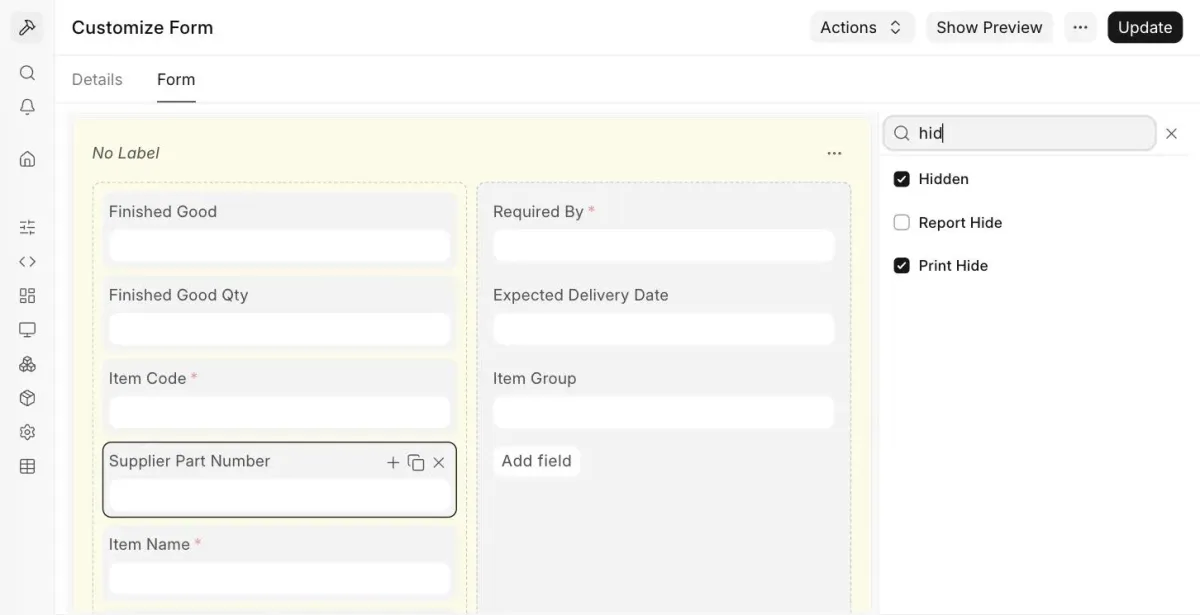
Each purchase transaction has a Supplier Part Number field in the Items table, where the supplier's item code is fetched. By default, this field is hidden in the form as well as in the standard print format.
To make it visible, go to Customize Form and select the child table of the transaction, for example, Purchase Order Item. In the Form tab, click the Supplier Part Number field and uncheck Hidden to show it in the form, and Print Hide to show it in the print format. Then click Update.
The Supplier Part Number is fetched in a purchase transaction only if the Supplier and Item Code selected in the transaction match an entry in the Item master's Item Supplier table.